Track real-time X/Y screen coordinates and find precise pixel locations. Free online tool — no installation required.
Choose a screenshot from your device, or paste it here.
First take a screenshot with a screenshot tool, then paste it here with Ctrl+V (⌘V on Mac) to read the original image pixels.
To locate a point on your desktop, capture the entire target display and paste the screenshot here to find the coordinates you need.
For desktop coordinates, capture the entire target display and verify its desktop origin and pixel scale.
How do I find the center of my screen or any image?
After entering center mode, paste a full desktop screenshot or any image. The crosshair marks the image center, and the coordinates are in original image pixels.
Calculates the center of the measurement area using the selected origin and pixel mode. If fullscreen is unavailable, it shows the window center.
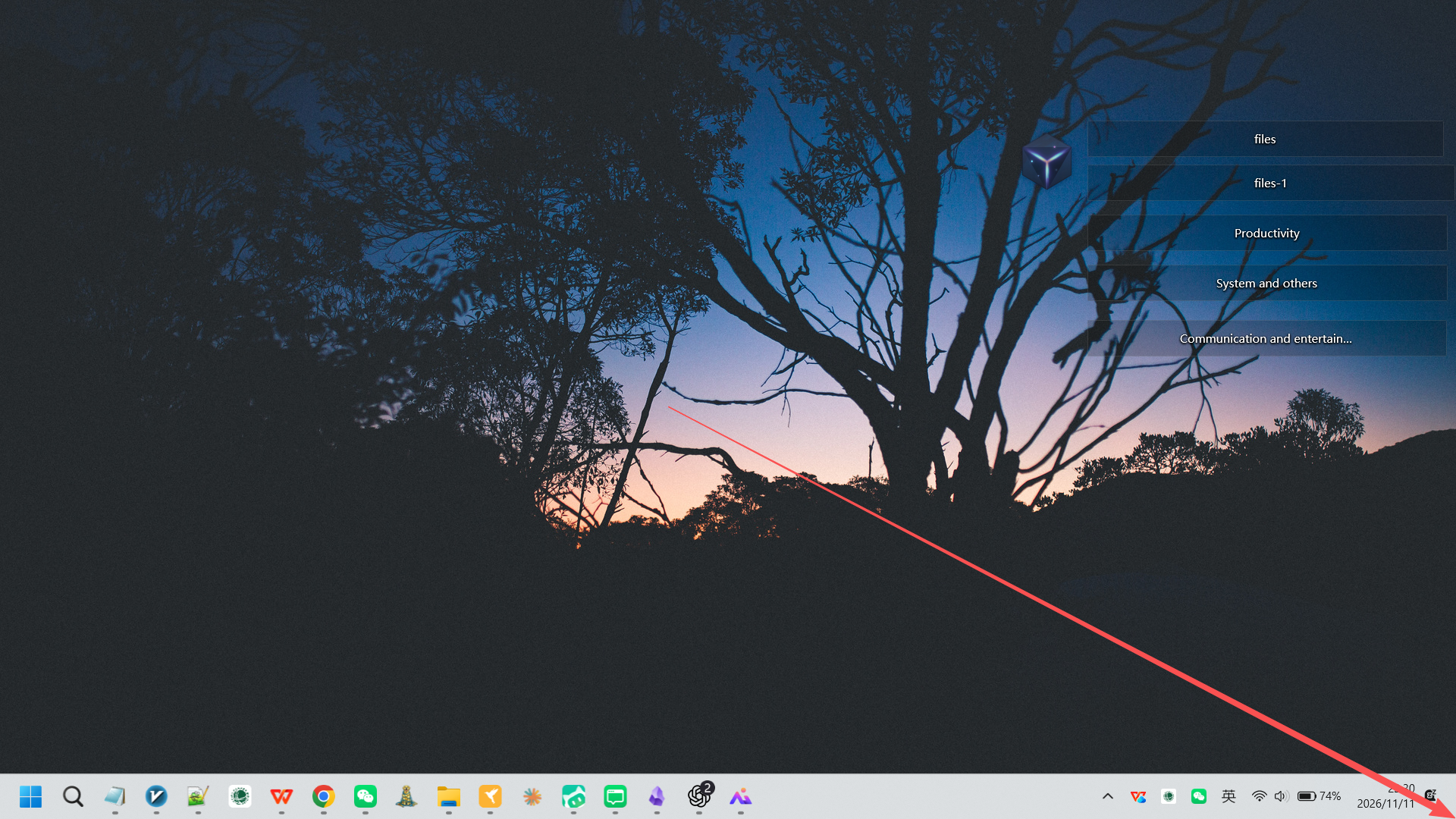
This full desktop screenshot is 1920 × 1080. With the origin at the top left, the first pixel is (0, 0) and the bottom-right pixel is (1919, 1079).
Open original image. Copy the image, then return here and paste it to see the coordinates.
This free online screen coordinates finder helps you find the exact X and Y coordinates of your mouse pointer on the screen. Track mouse coordinates in real time, measure pixel locations, and calculate the center of any screen. An essential utility for frontend developers, UI/UX designers, and QA testers.
Select where the (0,0) point should be. "Top Left" is standard for websites.
Pick "Native" for physical pixels or "Display" for CSS pixels (with DPI scaling).
Click Start to enter fullscreen. Move mouse to see coordinates. Fullscreen readings are relative to the current fullscreen area and do not represent desktop coordinates across displays.
Paste a screenshot with Ctrl+V (⌘V on Mac) to read original image pixels.
| Mode | What the numbers describe | Best for |
|---|---|---|
| Window | Position inside the visible browser area. | Debugging a web page or locating an element in the viewport. |
| Fullscreen | Position inside the current fullscreen area. It is not a desktop position across monitors. | Finding a point or the center of the current fullscreen area. |
| Screenshot | Pixel position in the original image, independent of the resolution setting. | Marking a point in a full screenshot or a crop. |
Open this tool, select origin, and move your mouse.
Native refers to physical pixels. Display includes scaling factor (DPI).
Right-click in measurement mode to open the controls, then select Copy Coordinates.
Paste a full or cropped screenshot and move the pointer inside the image. The reading uses original image pixels, regardless of the selected resolution mode. To convert it to desktop coordinates, use a top-left origin and add the screenshot’s desktop offset in the same pixel units. Click or tap the target in the image to lock its coordinates before copying.
The easiest way is to use our free mouse coordinates tool online — no installation needed. Just open the tool, click "Start", and move your mouse to see the X and Y position in real time. For built-in methods, you can also use PowerShell or AutoHotkey.
Enter fullscreen to read coordinates within that area. For a full or cropped screenshot, paste it and select a point to read its original image pixels.
To compare several readings, copy each point and return to Recent Coordinates. You can copy a previous reading again without measuring the point twice.
For browser debugging, the Mouse Position Detector shows screen, viewport, page, and element coordinates side by side.
For desktop workflows, see the pixel coordinate guide for Windows, macOS, and Linux methods.
Need your screen's exact center coordinates? Our tool calculates the dead center of any monitor in real time. Learn more about screen center coordinates →
Screen coordinates are a system used to specify the position of a point on a computer display. In web development and most graphical user interfaces, the coordinate system typically starts from the top-left corner of the screen, which is designated as (0,0). The X-axis increases as you move to the right, and the Y-axis increases as you move down. This is different from the standard Cartesian coordinate system used in mathematics, where the Y-axis usually increases upwards.
Modern displays have high pixel densities (Retina, 4K, etc.). This introduces a distinction between physical pixels and CSS pixels. For example, a "Retina" screen might have a physical width of 2000 pixels but report a CSS width of only 1000 pixels (Device Pixel Ratio of 2). This tool allows you to switch between "Native" (physical) and "Display" (CSS) modes to understand this relationship better.
Precise coordinate tracking is crucial for:
Screen Coordinates is a practical reference site for developers, designers, QA testers, and technical support teams who need reliable ways to measure screen position, pixel location, and cursor coordinates. The goal is to pair a simple tool with useful educational content so people can understand why coordinate values change across browsers, displays, and operating systems.
In addition to the main tool, this site publishes tutorials about Windows and Mac measurement workflows, DPI scaling, design alignment, screenshot-based inspection, and QA documentation. If you need details about the site, our publishing standards, or how to contact us, use the links in the footer below.